What is free in the NBA App?
The NBA App is free to download, and you can use it to follow scores, standings, schedules, highlights and league news without buying League Pass. Watching a particular live game is a separate question: the game may require a subscription, a participating television provider or another broadcaster's service. Installing the app does not turn every Watch button into free access.
The official App Store listing identifies the developer as NBA Media Ventures and labels the download as free with in-app purchases. That is a useful first check when searching a store full of basketball score apps. Choose the official app for the NBA account and viewing instructions in this guide; a similarly named third-party score tracker may work very differently.
For a fan checking the league during a commute, the free features may be enough: find the final score, read the recap and watch the highlights before deciding which full game deserves an evening. The app also advertises free postgame press conferences, personalized updates and NBA Play activities. These are different products from a complete live game broadcast, even when they appear beside it in the same app.
Think of setup as three separate steps. First, install a supported version. Second, sign in to your NBA ID for your account and preferences. Third, connect any paid subscription you already own. Completing the second step does not prove the third has worked, and being signed out does not necessarily mean your subscription has expired.
League Pass supplies paid viewing access within its coverage and regional restrictions. A free game promotion, when offered, has its own dates and eligibility; it should not be treated as a season-long entitlement. Check the specific game's viewing information before planning around it.
If your immediate question is simply who plays, open today's NBA games first. Then decide whether you want a score update, a short recap or the full broadcast. Choosing the task before troubleshooting the app helps you avoid paying for a feature you do not need or repeatedly signing in when the content requires a different service.
Check whether your device supports the NBA App
Start with the device you will actually watch on. A successful phone installation does not prove that an older television can run the same app, and a familiar brand name is not enough to establish compatibility. Find the model and operating-system version in that device's settings before spending money on a subscription or replacement streaming player.
Phones, tablets and computers
As checked on October 13, 2026, the Apple listing requires iOS 18 or later on iPhone and iPadOS 18 or later on iPad. The NBA's supported-device guide lists Android 7.0 or later for Android phones and tablets. On a computer, use NBA.com with an up-to-date supported browser instead of assuming you need a separate desktop app.
Check the store on your own device as well as this list. It can tell you whether the current release is available to install in your region. If your phone cannot update to the required system version, repeatedly reinstalling an older copy will not change that hardware limit. A supported computer may provide a more practical viewing route while you decide what to do.
TVs, streaming players and consoles
| Platform | Current published requirement |
|---|---|
| Apple TV | tvOS 17 or later |
| Roku | Fifth generation or later; Roku OS 15.3 or later |
| Fire TV / Fire Stick | Third generation or later; Fire OS 7 or later |
| Android TV | Android 7.0 or later |
| Samsung TV | 2018 models or later |
| Chromecast | Third generation or later |
| PlayStation / Xbox | PS4, PS5; Xbox One, Series X and Series S |
Several platforms have country restrictions; the official guide links to those details and additional television and headset platforms. Treat this table as a compatibility starting point, not a promise that every model offers identical features everywhere. The current device store and NBA support page should settle a purchase decision.
For a living-room setup, test the remote, sign-in screen and an available video before tip-off. Consider who will use it: someone watching one team may value a simple, dependable game selection more than advanced display features. Keep the phone nearby for activation, but check playback on the television itself. That final test confirms the screen you plan to use is ready, rather than only confirming that your account works somewhere else.
Sign in with the NBA ID you already use
Use the NBA ID associated with your existing account before creating another one. If you bought League Pass directly from NBA.com, that purchase belongs with the NBA ID used at checkout. An account created later with a different email can be perfectly valid while showing none of the subscription access you expected.
The NBA's current mobile sign-in instructions are straightforward: open My Account in the top-right corner, choose Sign In or Join, then enter your NBA ID email and password. After signing in, check the account identity before opening a paid game. This quick check matters on a shared tablet or a phone that has used more than one email address.
For example, you might subscribe on a laptop using your usual personal email but open the mobile app with a second address saved by your phone. Seeing a subscribe prompt in that situation does not establish that payment failed. Compare the signed-in email with your purchase confirmation first, then use the existing account rather than buying the same product again.
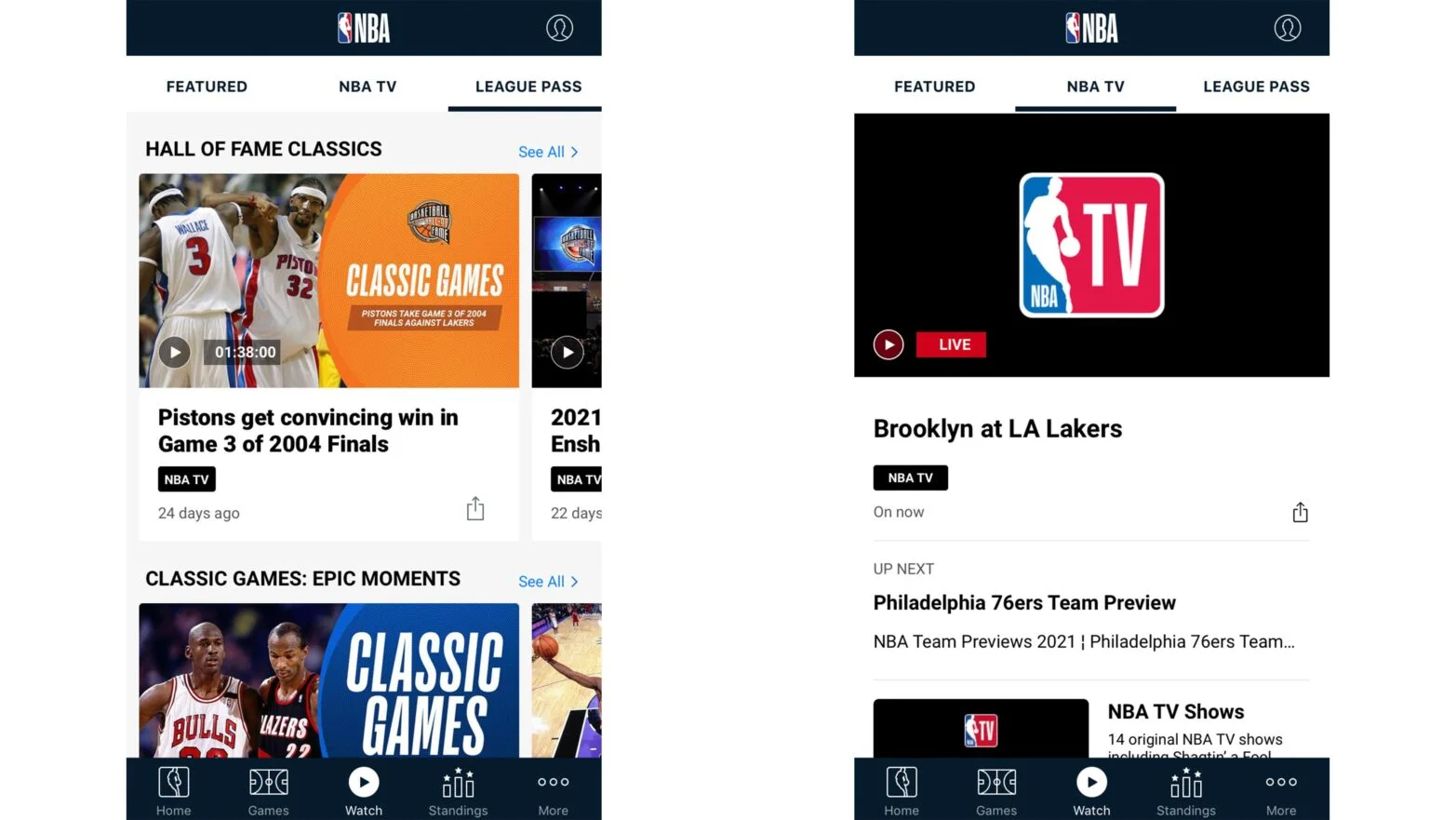
On a television, follow the sign-in option presented by that version of the app. The NBA's Samsung instructions say that, if an activation code appears, you can enter it at NBA.com/activate on a phone or computer and sign in there. Keep the television's code visible while completing that step. Do not assume every platform displays the same screen.
If you cannot remember the password, use the NBA's official reset option. The help page warns that resetting it signs you out across your devices, so allow time to reconnect the television afterward. That behavior can explain why a screen that worked yesterday suddenly asks you to sign in again.
Once the correct account is open, separate a sign-in success from a viewing success. Your profile appearing confirms the account step; an available game playing confirms more of the viewing setup. If the account is correct but paid access is missing, move to purchase recovery instead of repeating the login process without changing anything.
Restore a subscription bought somewhere else
Start with the receipt: who sold you the subscription? NBA.com, Apple, Google Play, a television provider and a connected-TV store are different purchase routes. Knowing the seller tells you which recovery path to use. It also identifies the company to contact for billing changes, rather than sending you through unrelated account menus.
Apple and Google purchases
The NBA's purchase-sync guide gives the same basic mobile route for Apple and Google Play: My Account, Subscriptions, Sign in to restore purchase, then Restore Purchases. Look for the platform's confirmation that the subscription has linked. Restoration checks an existing purchase; it is not a reason to press a new subscription checkout button.
There are two account relationships to inspect here. The store account needs to be the one associated with the purchase, while the NBA ID is the identity you use inside the NBA service. Do not assume typing your store email into an NBA login automatically restores anything. Check the store's subscription record, follow the restore path and then inspect the NBA account's subscription details.
TV providers, Prime Video and connected-TV purchases
For a participating television provider, the current provider instructions use My Account, Subscriptions, Already Purchased?, then Select TV Provider. Choose the provider and authenticate with its credentials. The package you purchased determines what that connection unlocks; having a television account alone does not establish League Pass access.
Prime Video buyers should choose Link Prime Video Subscription at that selection step. Check that the Amazon account actually owns the relevant subscription before trying to link it. For Samsung purchases, the NBA also advises checking that the Samsung account active on the television matches the purchasing account when access fails to sync.
If your provider is missing, contact NBA support with the purchase details instead of selecting a different company's logo. Keep the seller, order date and product name available. Those details are more helpful than saying only that you paid for “NBA,” which can refer to several different products.
Finally, review subscription status in your NBA account. A successful link should be followed by checking the displayed access and testing appropriate content. For changes to a third-party subscription, use that seller's support. Keeping purchase management and app access distinct makes later renewal, upgrade and cancellation questions easier to resolve.
Find your game and choose how to watch
Begin with the matchup and date, then choose the kind of video you want. A highlight clip, condensed replay and full broadcast can all belong to the same game page. If you are looking for a complete game, opening a short free clip does not test whether your paid subscription is connected correctly.
Use the Games area to find the matchup, open its details and select the available viewing option. The NBA's replay instructions direct mobile users to Watch Now and then the desired stream. Compare the date and opponents before choosing a feed, especially when teams have played each other several times in a short period.
For a live game, consult the listed broadcaster as well as the start time. Our NBA TV schedule helps with that planning step. A game appearing on the calendar tells you it is scheduled; it does not promise that your particular app subscription owns the live viewing rights where you are.
Replays, downloads and watching more than one game
Replays may take hours to process after the final buzzer. The NBA's current United States policy makes nationally blacked-out full replays available at 6:00 a.m. Eastern the next day and locally blacked-out full replays available three days after the game ends. Check which situation applies before treating a missing replay as a broken account.
Offline downloads require League Pass Premium on supported mobile and tablet devices. From the game, open the three-dot menu under the player, select Download and choose the stream. Saved videos are managed through Account, Preferences and Downloads, and expire after 30 days. Complete and test the download before leaving a connection you trust.
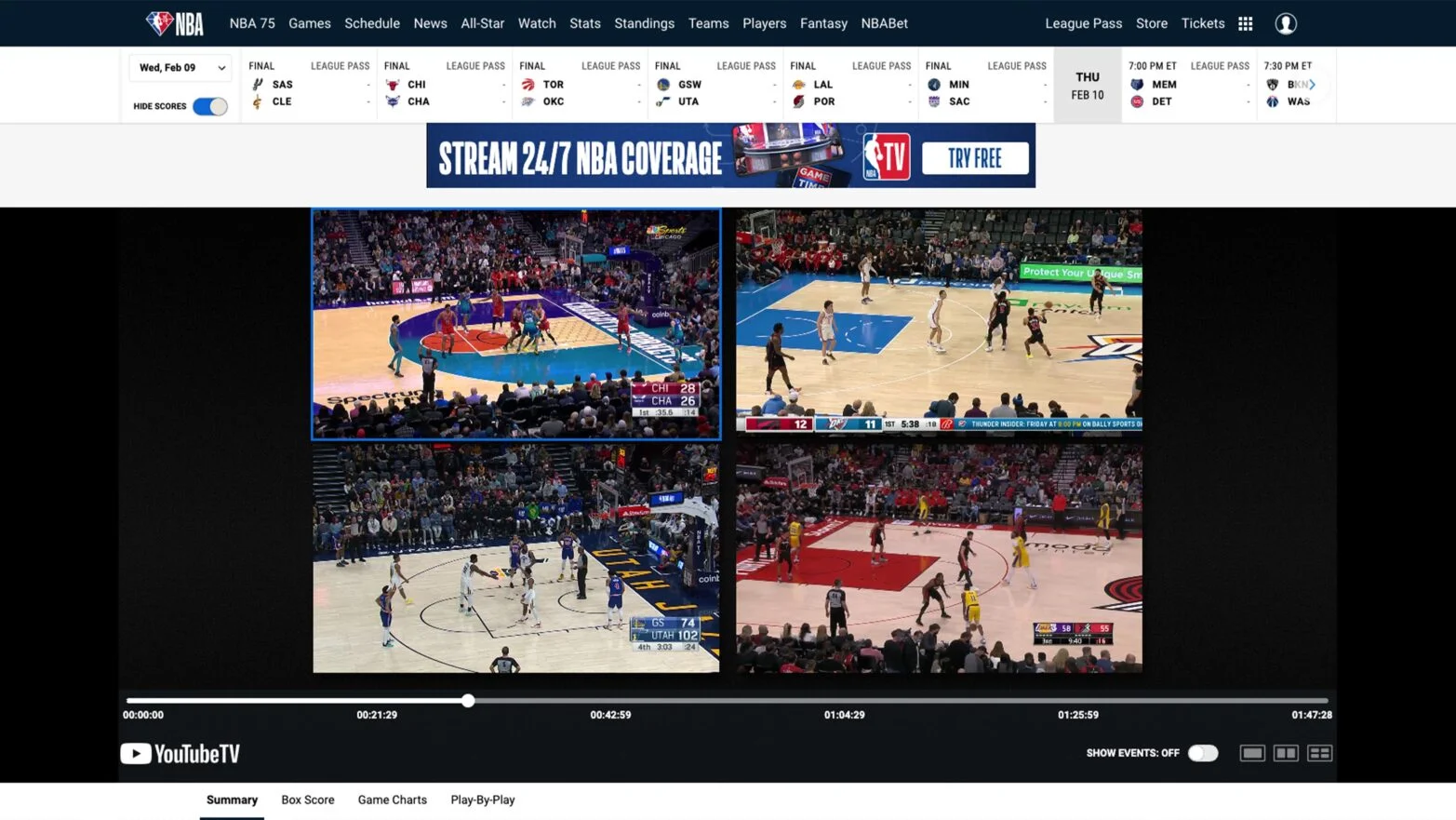
Multiview is for live games and supports up to four on compatible platforms, with lower limits on some devices. It is useful when two close finishes overlap. It is a different question from how many separate devices your subscription lets you stream on, so check both limits if someone else in your household will also be watching.
Choose the format around the evening you have. A full replay preserves the game's rhythm; a condensed version fits a shorter break; Multiview helps follow simultaneous action. None of those choices requires guessing from an old screenshot. Open the current game's menu and use the options actually offered to your account on that screen.
Fix common NBA App access problems
Describe the failure before changing settings. “The app does not work” can mean it will not install, rejects a password, asks for payment or refuses one particular game. Those symptoms point to different checks. Write down the exact message and the screen where it appears so you can test one explanation at a time.
If you cannot install or update: compare your model and operating system with the current supported-device list. Update through the device's normal settings and store. If the hardware cannot meet the requirement, test NBA.com on a supported computer or another device you already own before deciding whether replacement equipment is necessary.
If sign-in fails: confirm the NBA ID email and use the official password-reset path when needed. If sign-in succeeds but the app asks you to subscribe, inspect your subscription status and original purchase route. A store receipt and a signed-in NBA profile are two useful pieces of evidence; neither alone proves that they have been connected.
If one live game is unavailable: read its rights message and check its broadcaster. The NBA blackout guide explains that United States local and national restrictions depend on where the device is watching. A trip can therefore change which live games are available. Reinstalling the app does not remove a correctly applied broadcast restriction.
If the reported location seems wrong: the NBA suggests testing another supported platform or browser, clearing relevant cache and cookies, and comparing Wi-Fi with mobile data. Use those as diagnostic checks, then contact support if the result still appears incorrect. Give the support team the location information it requests privately; there is no need to post account or network details in a public discussion.
If video fails more broadly: update the app and device software, then test again with a known available video. Note whether the problem affects one game, every paid game or even free clips. That comparison gives support a clearer starting point than a series of unrecorded reinstalls. Also note whether the same account works on another supported device.
For a useful support request, collect the model, operating-system version, app version, matchup, approximate time, error text and purchase seller. Explain the checks already completed, and keep passwords out of the message. The goal is to give the team enough information to reproduce the problem while keeping your account secure. Doing this before a busy game night leaves more of your evening for basketball.
Sign in with Google to join the discussion.